

Introduction to Git Integration in Dynamics 365 Finance & Operations
In the world of enterprise software development, version control isn’t just helpful it’s essential. For developers working with Microsoft Dynamics 365 Finance and Operations (D365 F&O), Git offers a structured way to manage X++ code, track changes, collaborate with teams, and maintain clean, deployable codebases. This blog walks you through setting up Git in a D365 F&O environment, linking it with your model, and committing a simple class file using Visual Studio.
Prerequisites
To follow along, ensure you have:
- An Azure DevOps project,
- Visual Studio configured for D365 F&O development,
- Access to the F&O development VM and its PackagesLocalDirectory.
Once these are in place, you’re ready to link Git with your X++ code in a structured, scalable way.
1. Clone the Repository and Setup Your Workspace
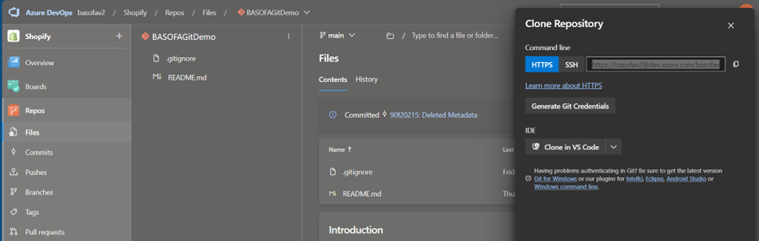
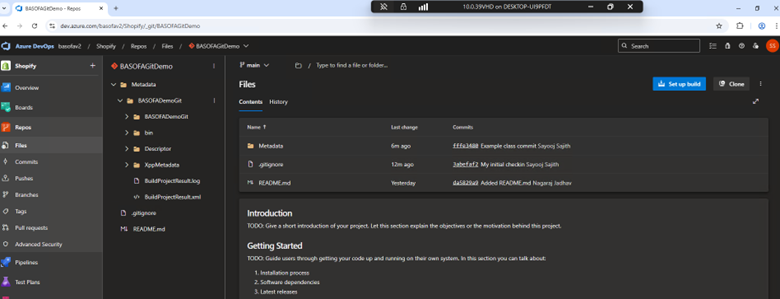
Start by navigating to your Azure DevOps project and creating a new repository, this will house your model source code. After that, click on Clone and copy the repository URL.
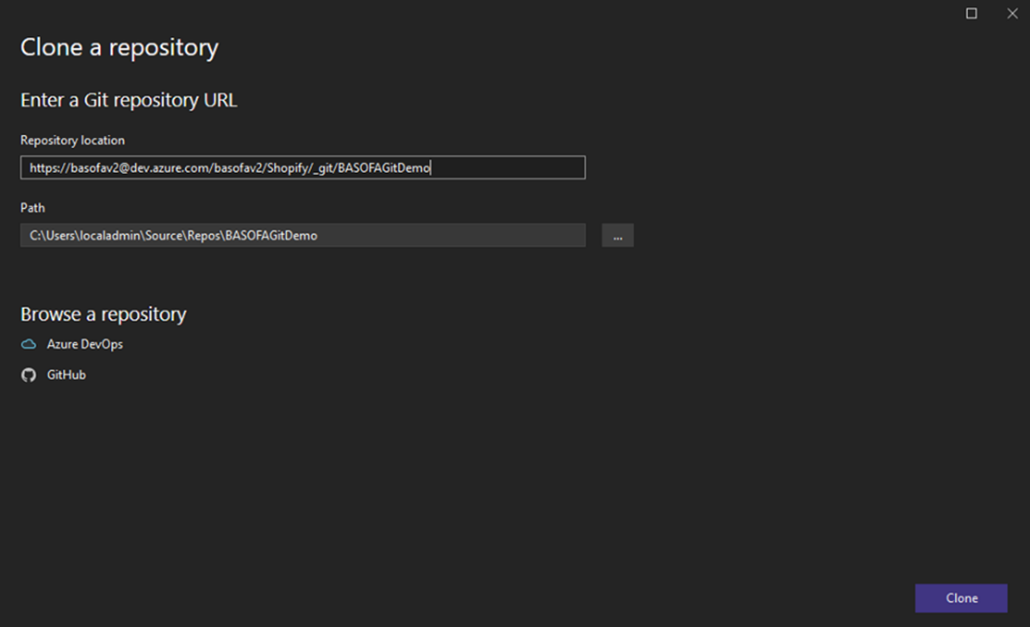
In Visual Studio, go to File → Clone Repository, paste the URL, choose your local path, and click Clone. This will create a local working copy of the repository, which you can now see in Solution Explorer.
2. Create and Move the Model
In Visual Studio, go to Dynamics 365 → Model Management → Create Model. Fill in details like model name (BASOFADemoGit), publisher, version, and layer. Finish the wizard to generate your model inside the PackagesLocalDirectory.

Next, move the newly created model folder into your Git repository—ideally under a subfolder like Metadata.

3. Link Model to Git Using Symbolic Link
Since D365 F&O expects models to exist in PackagesLocalDirectory, you’ll need a symbolic link pointing to your Git-tracked model.
Open Command Prompt as Administrator, navigate to
C:\AOSService\PackagesLocalDirectory,
and run:
mklink /D "BASOFADemoGit" "D:\GitRepos\BASOFAGitDemo\Metadata\BASOFADemoGit"
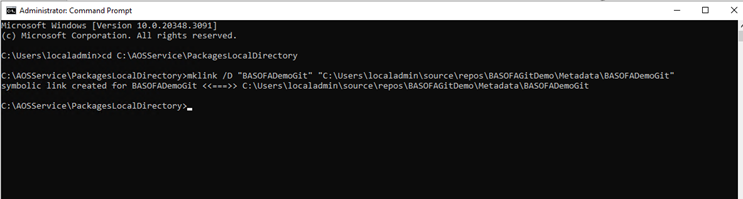
This makes D365 treat your Git-tracked model as if it were still in the expected location, enabling seamless development and version control.
4. Committing Code: Add a Class and Push
Let’s walk through a basic example: adding and committing a class.
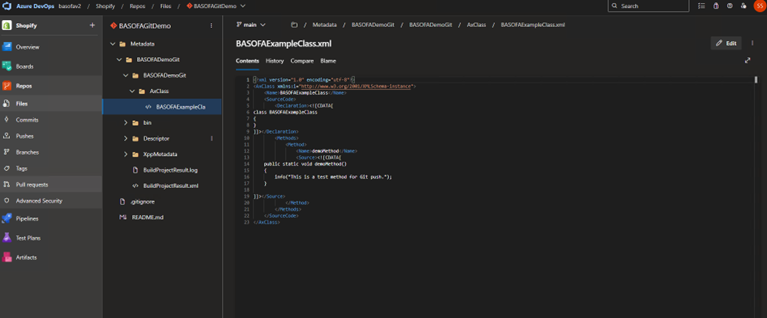
Create a new project inside your Git repo path and link it to the BASOFADemoGit model. Add a new class (e.g., BASOFAExampleClass) and write some simple X++ code.
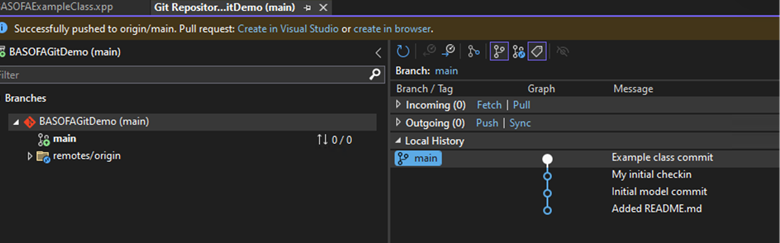
In Git Changes, Visual Studio will automatically detect the new file. Stage it, add a commit message like “Added example class,” and commit the change. Finally, click Push to send the change to Azure DevOps.
Best Practices
Rather than listing dozens of best practices, focus on consistency: write meaningful commit messages, use feature branches for isolated work, and regularly sync with the team. Use .gitignore to filter out system-generated files and consider introducing pull requests for peer reviews and quality control.
Conclusion
Integrating Git into your D365 F&O development process brings structure, accountability, and team agility. With symbolic links, you can bridge the gap between D365’s model directory expectations and Git’s flexible version control. Start with small changes like a single class and you’ll quickly build confidence to manage larger features, refactors, and deployments through Git.
As your team matures, explore branching strategies (e.g., feature/dev/release), enforce code review processes via Azure DevOps pull requests, and introduce CI/CD pipelines for validation and deployment.
References
1. X++ in Git – Finance & Operations | Dynamics 365 | Microsoft Learn
3. Branching overview – Finance & Operations | Dynamics 365 | Microsoft Learn